
Alerts in TradingView
Using the notification feature, you can receive signals on your PC and in the mobile app👇
I live in a private house and in summer, when the kids are splashing in the pool, sitting in the office and watching every candle is a real punishment for me!
The first thing I did when I developed the indicator was add the ability to receive an automatic notification about the start of a rise and fall)

At what moment is it better to receive the signal
Signals do not repaint after the candle closes - this distinguishes the quality and reliability of Midas👑, but until the candle is closed, the signal may change or disappear.
You can decide for yourself when to receive the signal - immediately at the moment of appearance or after confirmation and candle close.

For small timeframes I usually wait for the candle to close so as not to receive a lot of noisy signals
For higher timeframes, to receive the signal without waiting for the candle to close and not miss the profit, I enter the trade earlier, before the candle closes
Creating alerts
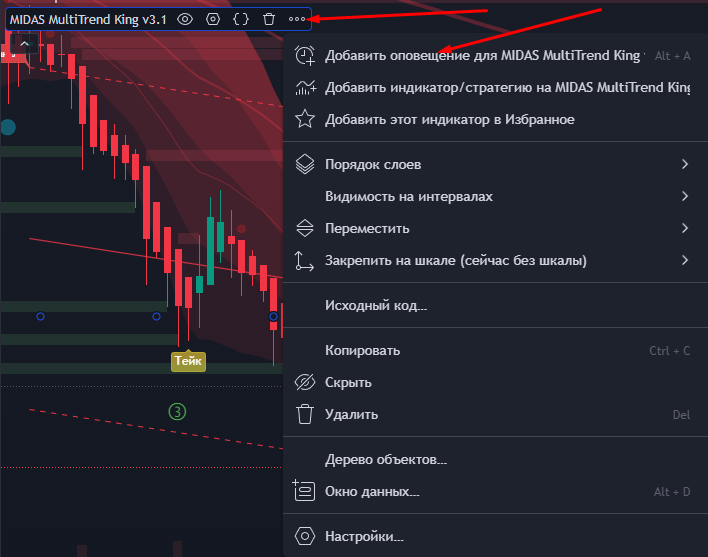
Select the desired signal for notifications
Alerts are available for virtually any events of both the upper and lower indicator - you can use:
regular signals BUY & SELL
the appearance of more than 3 divergences
bounces off levels (when the price approached the level and bounced off it)
signals PUMP & DUMP (bright yellow circles)
reversals of money flow (when money flow starts to grow or fall)
change of the trend ribbon (when trend ribbon starts to grow or fall)
Keep your assets under full control!

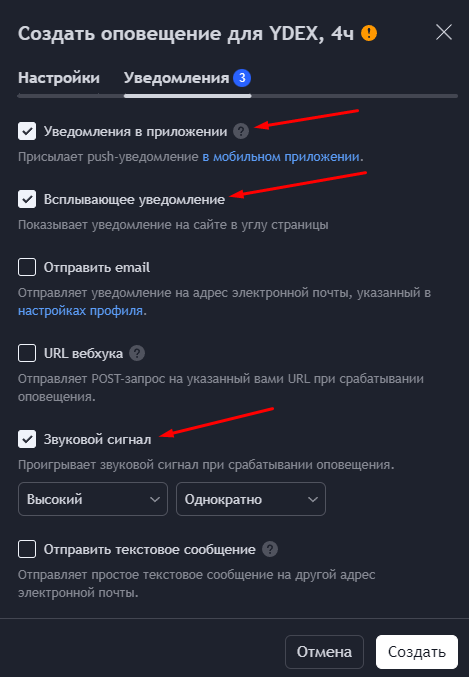
If you have a Premium subscription on TradingView, you can configure alerts not only for 1 ticker, but also for the entire selected favorites list, for example for several dozens or hundreds of instruments!
Viewing and managing alerts

In the right menu you can view the list of created alerts, delete unnecessary ones, edit parameters, pause and view the history of all notifications, and by clicking on an alert - quickly open the desired chart.
The number of available alerts depends on your subscription plan TradingView
Frequently Asked Questions
How many alerts can I set up
Different TradingView plans give different limits for setting up notifications:
Free - 1 notification (you can set BTC - the whole market follows it)
Essential - 20 notifications
Plus - 100 notifications
Premium - 400 notifications
How to make a notification for 100 tickers at once?
For this you need a Premium subscription - when setting up alerts you can specify not only a specific ticker but the entire watchlist.
Last updated